
1) The very first time you VNC into the printer PC (192.168.12.183),
you may be prompted for a VNC password. The password is: french
2) The login and password to the printer PC unlock screen
User: .\user
Password: French2017!
3) Look for and Double Click on Bitvise SSH Client icon on the taskbar or desktop

4) Click on Log in button
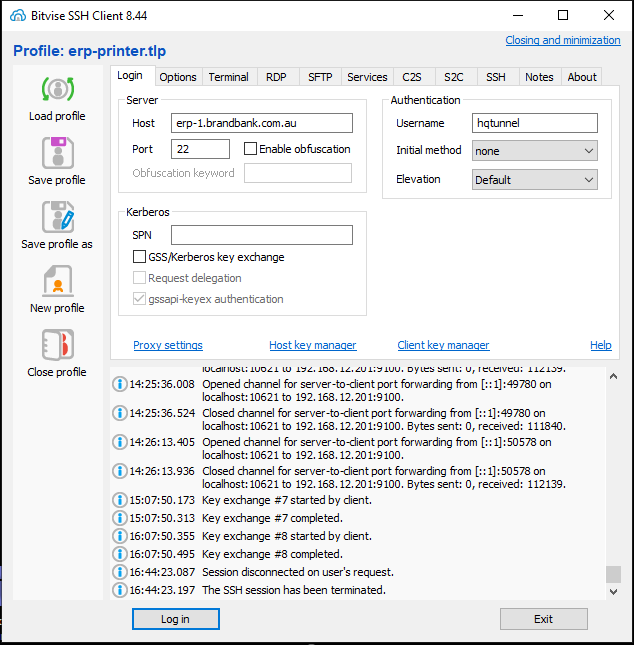
You expect to see this dialog box below and click on the OK button
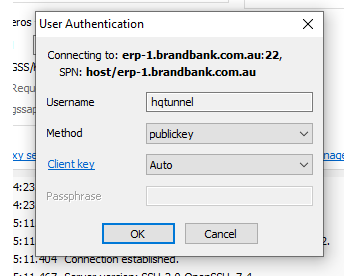
5) You expect to see a successfully login screen below
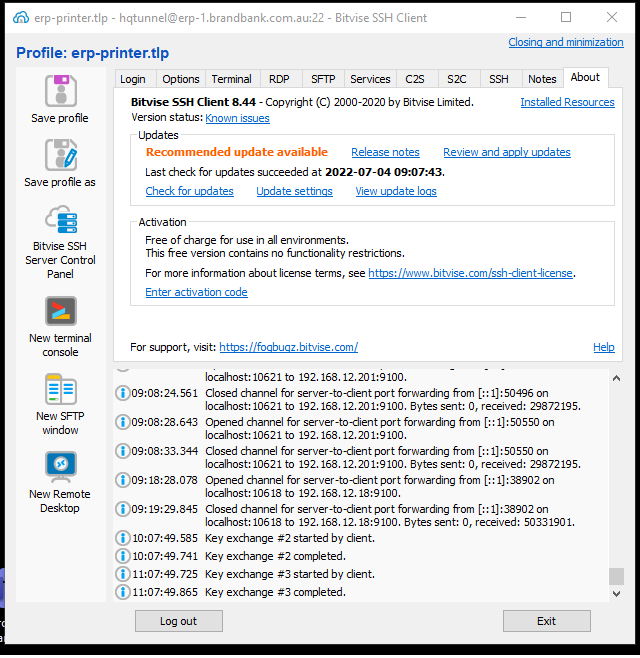
6) The local printer server should be activated and online ready for printing.
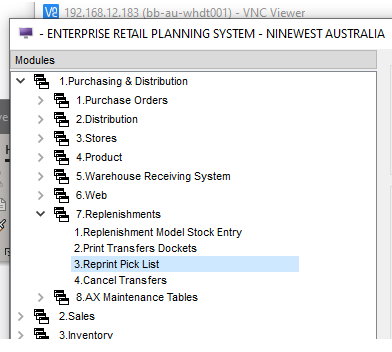
7) Sometime the Pick reports have been cancelled due to the printer server is down.
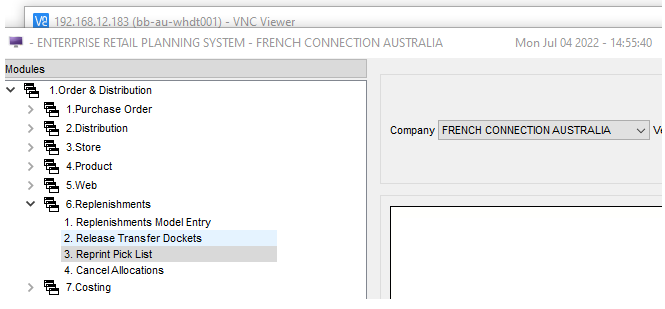
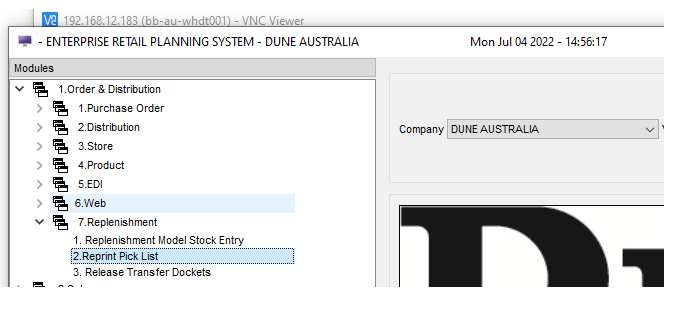
Unfortunately, you can’t connect directly to RAMIS cloud server to reprint them. You can contact me so I can reprint them
for you. Alternatively, you can reprint them through RAMIS application.
Nine West
French Connection
DUNE
6) You can contact Genero Support Team for support urgently if I am on leave or uncontactable.
Email: morgan.ho@4js.com
Phone: 0419228228
Please note – DO NOT attempt to make any changes to the BitVise SSH Client settings and configuration, if you
are not sure how the changes work?
Any changes to its configuration can corrupt and stop the local printer server and it is required a bit of time
to reinstall and configure BitVise SSH Client software.
Comments
0 comments
Please sign in to leave a comment.